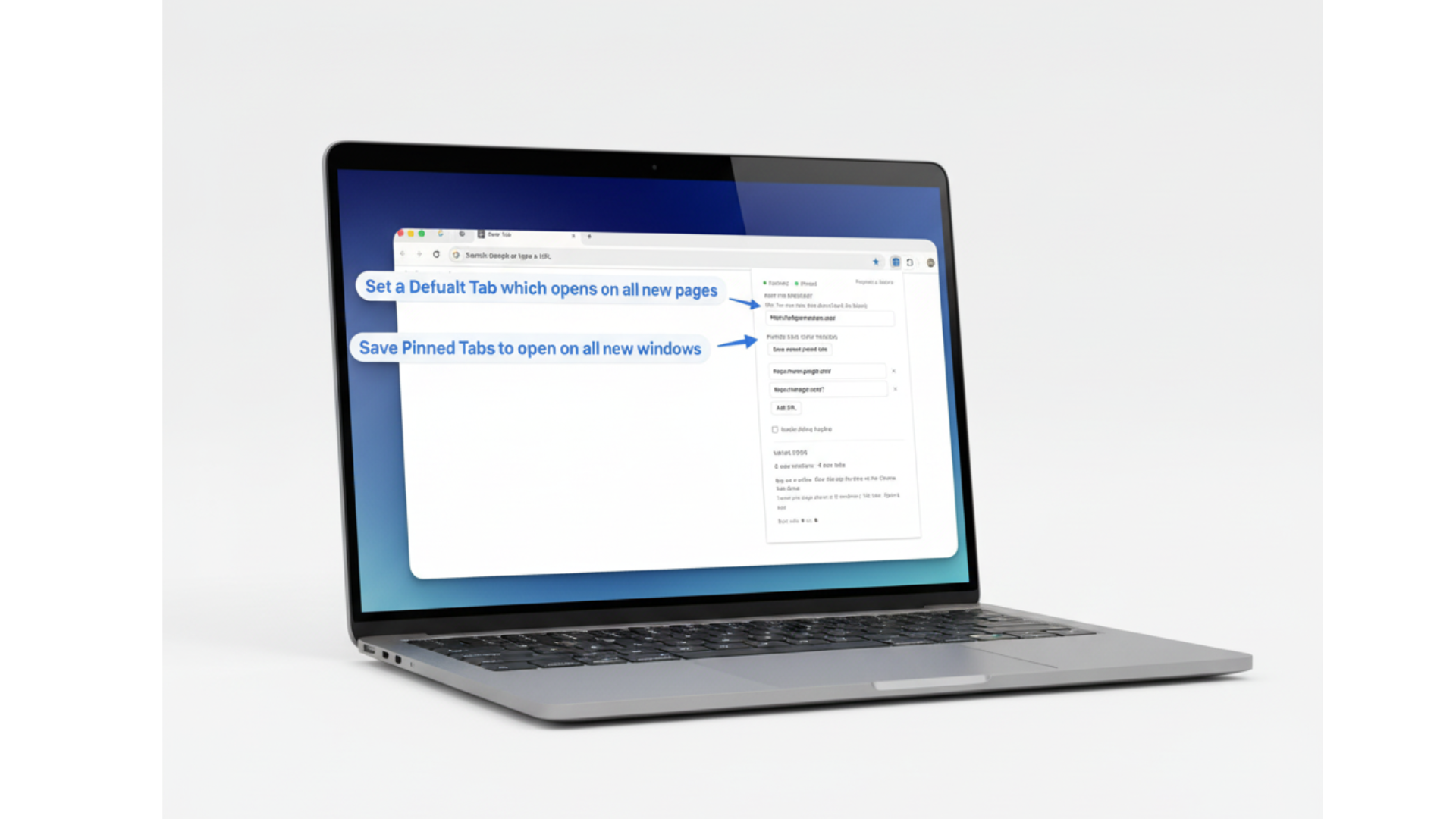
Simple, but powerful
New tab redirect
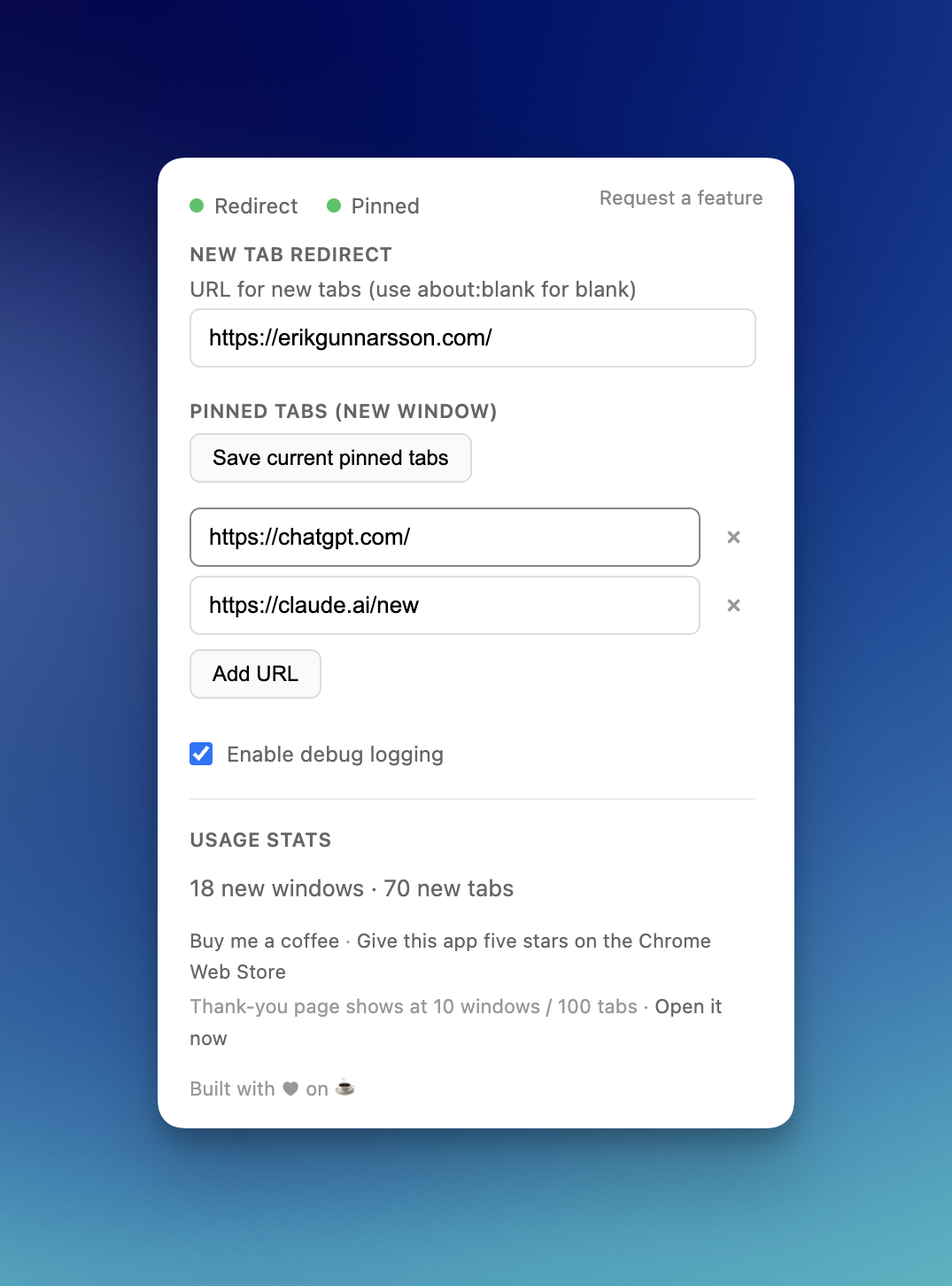
Configure a URL; new tabs open there via tab update (not redirect). Your cursor stays in the address bar so you can type immediately.
Auto pinned tabs
Save a pinned-tabs profile. New windows (Cmd+N / Ctrl+N) automatically open with those URLs pinned.
Get it
- Open
chrome://extensions - Enable "Developer mode"
- Click "Load unpacked"
- Select the extension folder
Or install from Chrome Web Store (when available).
Usage
Click the extension icon to set the redirect URL and manage pinned URLs. Or right-click the icon → Options for the full settings page.
See it in action
Frequently asked questions
Feature requests & feedback
Have an idea or bug report? Votes help prioritize what we build next.

Hey, I built this extension as a solo developer because I kept opening new tabs and new windows without a consistent setup. I wanted my dashboard in every new tab and my go-to tools pinned in every window—without thinking about it. This extension does exactly that. Hope it helps you too.